Showing posts with label slider. Show all posts
The power of C programming language, everyone knows!
You can make a program for any use C.

Here is a short example to make a program to create infinite number of folder in its current directory and also a program to overcome it -i.e- recursive deleter, which will delete everyting from its directory.

So, lets start making program that will create the infinite number of folder.
And now, a program which will remove these infinite folders in a second.
  • I've created and compiled the programs to do so. Download the zip from github.
  • Extract it to a directory.


  • Now copy the run and exec folder to the place where you want to do experiment. Say 'Desktop'.
  • NOTE: Copy run and exec both at Desktop.


  • Run the vfolder using terminal or double clicking on it.
  • As soon you run, it will keep creating infinite no of folder in run directory until you press ctrl+c or ctrl+z
Press CTRL+Z to stop the process or you will junk your pc.


  • Now find the vremove file, and double click on it.
  • It will clean everything in that run directory including itself.
Ya! You played well.
You have the code of this program in cpf directory.

Remember, don't use this script to junk any pc!
Password, the word itself invokes the attention of ear.


You may have seen saved passswords in your or others browser. 
This article may be helpful in many circumstances like, "you saved a password for a site in your browser and have forgotten the password", you can see that password using this trick.
Though, there are lots of ways to reveal such passwords, we came with one way of use.

Using Inspect Element feature of Browser

  • First of all, open the website in which you found saved password.

Suppose we have password saved in facebook.
  •  Right Click on password box where password is appearing as asterisk or star.
  • You will find a lot of options there.
  • You have to click on 'inspect' or  'inspect element' depending upon your browser. ( In Chrome, you will have Inspect )


  • Clicking on Inspect will open Developer Tolls below current window highlighting you to a line, which is the html code for password box,
  • That line will look like <input type="password"  
  • You have to double click on the word password, and edit it to any other word,


  • When the word password is changed to other word, press Enter and you will see the asterisks as text.
  • This way, you revealed the saved password.
  • Sometimes you need some privacy for your files in windows and just hiding it is not a good idea!

    You may need a protected place which can't be accessed by others. Here we come with a tutorial to make a locked or protected folder in windows using notepad.


    Actually you're about to create a batch file, which will let you to do so.

    So lets start!

    Step 1:

    Open notepad and paste the following code in it.

    cls
    @ECHO OFF
    title Folder LockedFolder
    if EXIST "tG Locker" goto UNLOCK
    if NOT EXIST LockedFolder goto tGlocker
    :CONFIRM
    echo Do you really wanna lock this folder(Y/N)
    set/p "cho=>"
    if %cho%==Y goto LOCK
    if %cho%==y goto LOCK
    if %cho%==n goto END
    if %cho%==N goto END
    echo Invalid choice.
    goto CONFIRM
    :LOCK
    ren LockedFolder "tG Locker"
    attrib +h +s "tG Locker"
    echo Folder locked
    goto End
    :UNLOCK
    echo Enter password to unlock if you are folder owner
    set/p "pass=>"
    if NOT %pass%== techgoogles goto FAIL
    attrib -h -s "tG Locker"
    ren "tG Locker" LockedFolder
    echo Folder Unlocked successfully
    goto End
    :FAIL
    echo Dont try to access others data
    goto End
    :tGlocker
    md LockedFolder
    echo LockedFolder created successfully
    goto End
    :End
    Set your password by editing highlighted part of code by yours and save it as tGlocker.bat


    Step 2:

    Now place that batch file (tGlocker.bat) to the location where you want to create a protected folder.
    Double click on tGlocker.bat and and a folder named  LockedFolder will be created in same directory.

    Then move your files and folders to be secured in LockedFolder and afterwards double click on tGlocker.bat and press Y to confirm locking it.
    You have sucessfully locked your private files!

    Step 3:


    Now to unlocked folder, double click on tGlocker.bat and enter 'techgoogles' or your password.


    Sounds some weird no? But it's right what you just heard.
    Now you can turn your non-touch screen laptop into touchable one.

    AirBar launched a accessory which will let you to control laptop by touching screen, not by traditional touch sensors.


    Regarding its working, AirBar explained that it projects an invisible light all over your screen and whenever you touch screen with anything like your finger, pen or glove breaks the light, you intract with screen without really touching it.


    For using it right away in your laptop, you just have to mount its magnetic strip below your screen edge to edge and plug in usb. Main advantage is that you even don't need any calibration.

    Officially it is supported for all Windows 8, 10 or Chromebook OS having 15.6 inch screen. It is ready with all gestures like pinch, swipe, zoom, scroll.
    The touch works perfectly without glare and Battery drain.

    For MacBooks, there is some limited functionality on OS X. But you can try if you have a mac lying around you.

    You can Pre-order AirBar just for $49 to be in line as its public release is scheduled for the first half of 2016.

    To learn more, check out this video.


    You must have thought to make cool stuffs at home. Well, here in Do It Yourself (DIY),
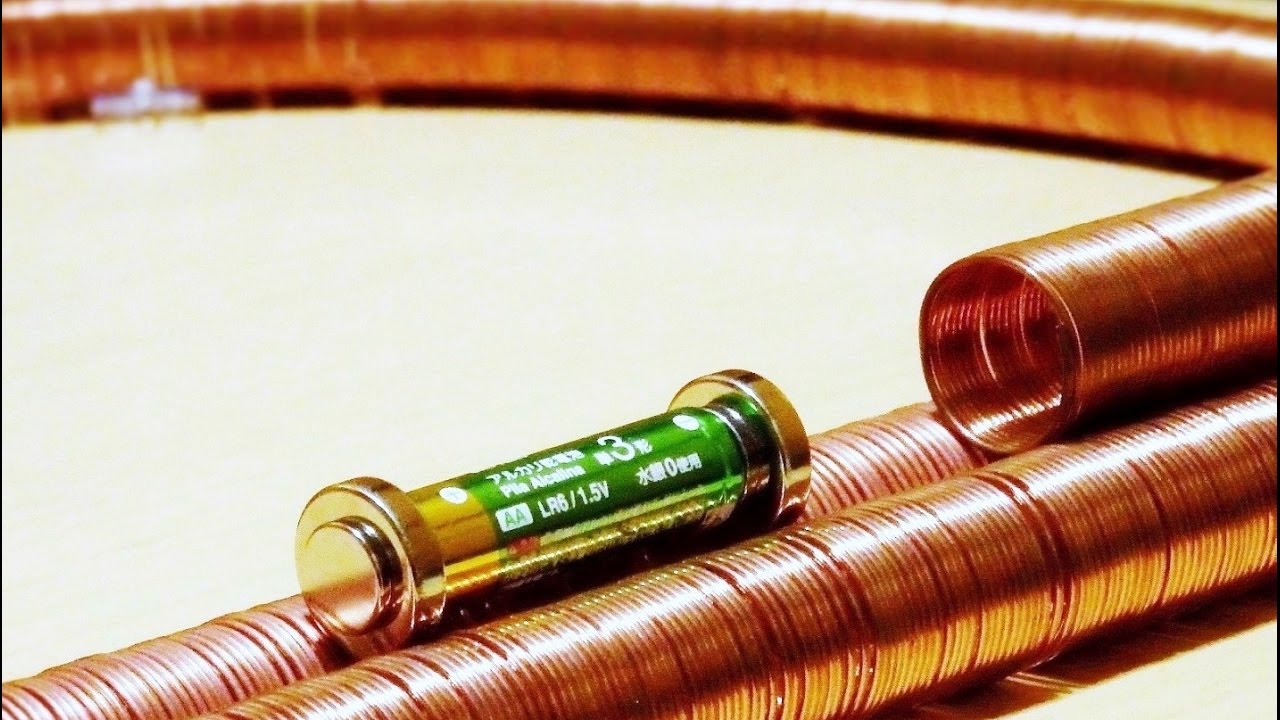
    you will learn to make a cool electromagnetic train.

    This train will not be a real one but you would enjoy doing home DIY.
    Materials required:
    • Copper wires
    • Dry cell battery
    • Neodyum Magnets

    Procedure:


    Align the magnets carefully on both the ends of dry cell.
    Mind the force of magnets so to get all in same direction.
    Make a long coil by winding copper wires over a wide pen or anything wider than battery.
    Take off that coil.

    Now place your battery with magnet battery piece and place it inside coil.
    Hurray! Your train is running.


    See this demonstration video:
    The apple iphone 6 is just awesome. Have anyone noticed its A8 processor's performance which is 64 bit and dual core.
    It makes the iphone 6 and 6 plus both run smoothly while the iPad Air 2 comes with A8X processor.
    With that processors upgrade we can also expect a bump in RAM from 1 GB to 2 GB.
    That sounds quite interesting. Each generation of iPhone gets better camera in comparison with its predecessors.
    And hence iPhone 6 has got a camera with the best ISO ever, with enhanced battery life and shatter proof-sapphire screen.